Choose a topic and follow the guidance step by step.
Getting Started
About Adonis Hotel Management
Adonis is an application that manages hotel operations through modules. The current web interface includes Front Office, Channel Management, Digital Marketing, Accounting, Restaurant, and Management modules. You can access reservations and stays from the Front Office; cash register, current account, invoice, and personnel transactions from Accounting. The visible screens and available transactions depend on your account permissions and the scope of services of your facility.
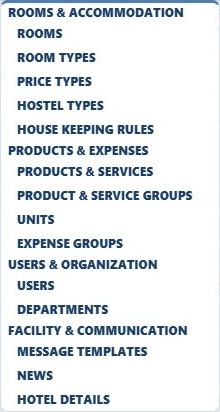
Management menu: room, rate, board, product, and user definitions · Click to enlarge the image.
Installation
How can I install Adonis on my computer?
To use Adonis via the web, open your facility's login address in a browser.
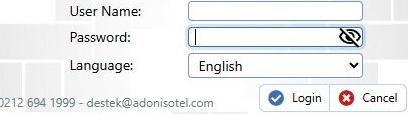
Fill in the Facility Code, Control Code, Username, and Password fields. Select the Language Preference and press the Login button.
If the desktop application is to be installed, obtain the appropriate installation package for your facility from the Adonis support team.
Login screen: user information and language preference · Click to enlarge the image.
Installation
How can I access the facility code/control code information?
The Facility Code and Control Code are used on the login screen to identify the facility account. The facility code is also displayed in the top bar after logging in.
If you do not have this information, contact your facility manager or the Adonis support team. Your username and password are separate from the facility connection information.
Login screen: user information and language preference · Click to enlarge the image.
End of Day
How is the end of day processed?
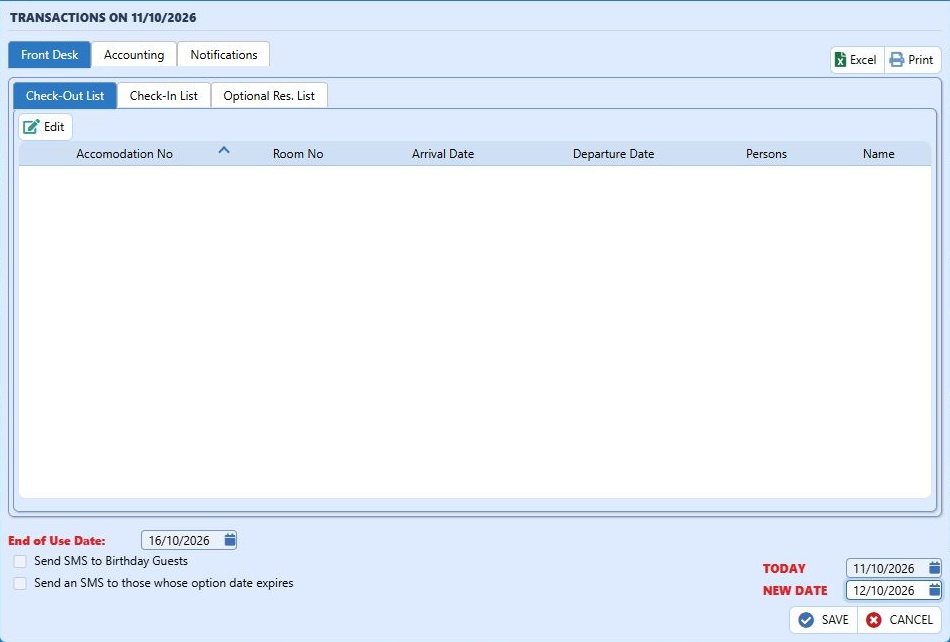
Open the End of Day option on the left side of the Front Office screen. The window that opens is called Cash Transfer / End of Day.
Check the Today and New Date fields. Review the lists for Rooms Not Checked Out, Reservations Not Checked In, and Option Date Arrivals.
After completing the checks in the Front Office, Accounting, and Notifications areas, use the Save button for the correct date. If there is a warning, do not force the process without checking its content.
End of Day: daily checks, transaction date, and new date · Click to enlarge the image.
End of Day
Why is it necessary to process the end of day?
End of day allows you to check daily operations while advancing the Adonis transaction date. The application displays the Adonis Date on the top bar; it can give an end-of-day warning if different from the system date.
Review rooms that have not been checked out, reservations that have not been checked in, and other daily checks from the Cash Register / End of Day screen. Changing the computer date does not replace this process.
End of Day: daily checks, transaction date, and new date · Click to enlarge the image.
End of Day
How to correct an incorrectly taken end of day?
Compare the Today field on the Front Office → End of Day screen with the Adonis Date on the top bar.
End of Day: daily checks, transaction date, and new date · Click to enlarge the image.
End of Day
It gives a warning message when taking the end of day, what can I do?
Read the entire warning; do not assume it has only one cause. On the Cash Register / End of Day screen, there are lists for Rooms Not Checked Out, Reservations Not Checked In, and Arrivals with Option Date.
Open the record related to the warning and check the actual check-in, check-out, or reservation status. Do not create unexecuted check-ins/check-outs or cancel a valid reservation to pass the end of day.
After the related operation is corrected, check the end-of-day screen again. Report any unexplained warning to the support team along with the transaction date.
End of Day: daily checks, transaction date, and new date · Click to enlarge the image.
End of Day
I get a CBRT exchange rate warning for End of Day transactions, what can I do?
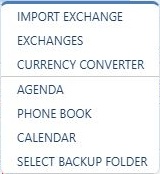
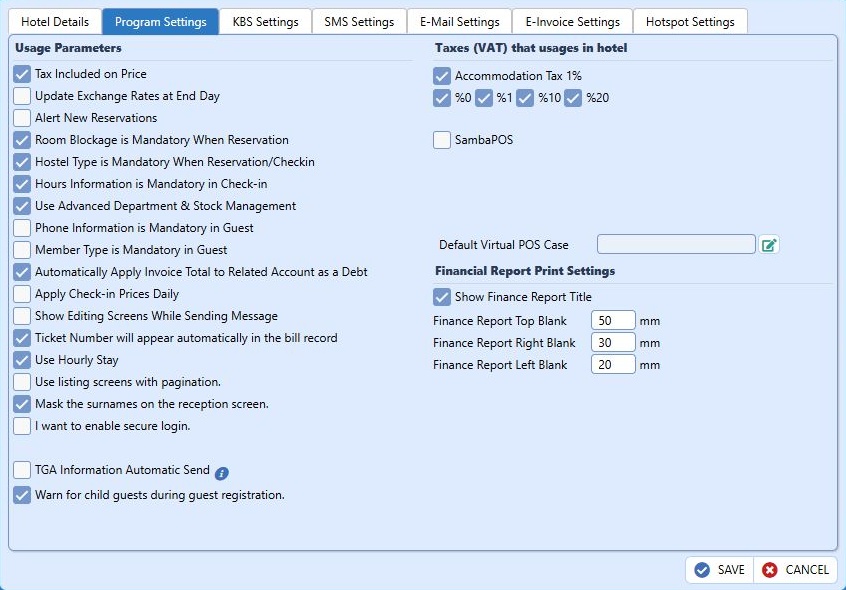
Front Office → In the Tools menu, the current option is listed as TCMB Exchange Rate Transfer. In Management → Definitions → Facility Information → Program Features, there is a parameter to Update Exchange Rates during End of Day.
In the rate warning, check your connection and transaction date; to transfer the rate, use the TCMB Exchange Rate Transfer option and read the result from the application.
Front office tools: rate transfer, exchange rates, and reminders · Click to enlarge the image.Program features: reservation, boarding, time, VAT, and report settings · Click to enlarge the image.
Accommodation
How to add accommodation to Adonis?
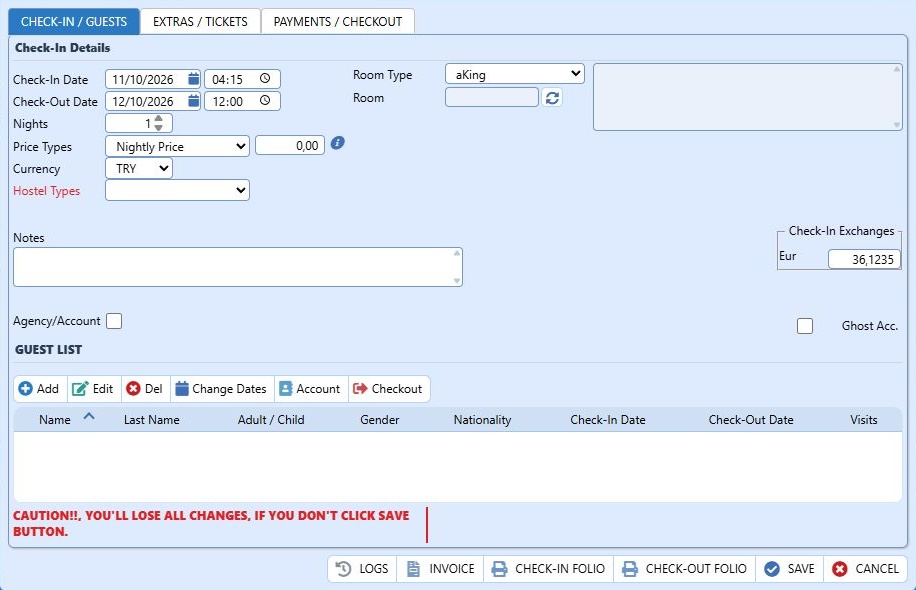
Open the Individual Entry from the Accommodation option on the left of the Front Office screen.
Check the check-in and check-out date/times, room type, room area, Rate Code, and currency. If necessary, select the Board Type.
Enter the guest information in the Guest List with Add. Check the room, guest, rate, and dates one last time and use the SAVE button.
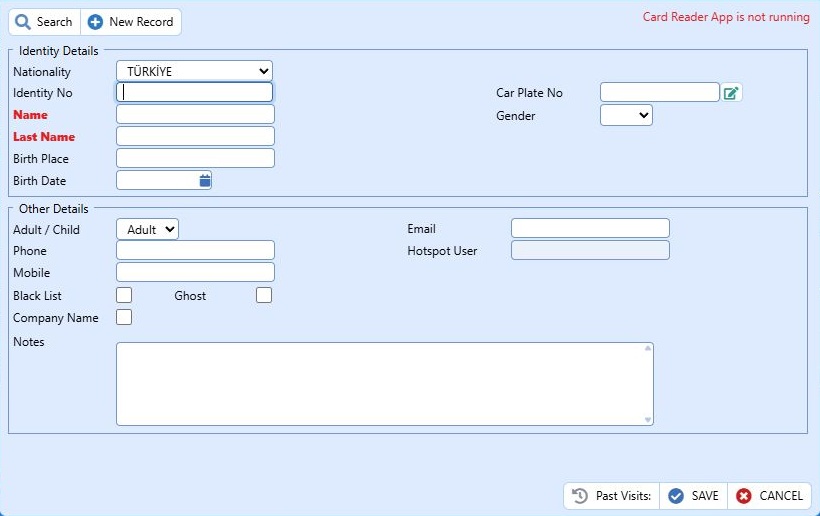
Accommodation card: check-in, room, rate, and guest information · Click to enlarge the image.Guest card: identity and contact fields, blacklist · Click to enlarge the image.
Accommodation
Can group accommodation be added?
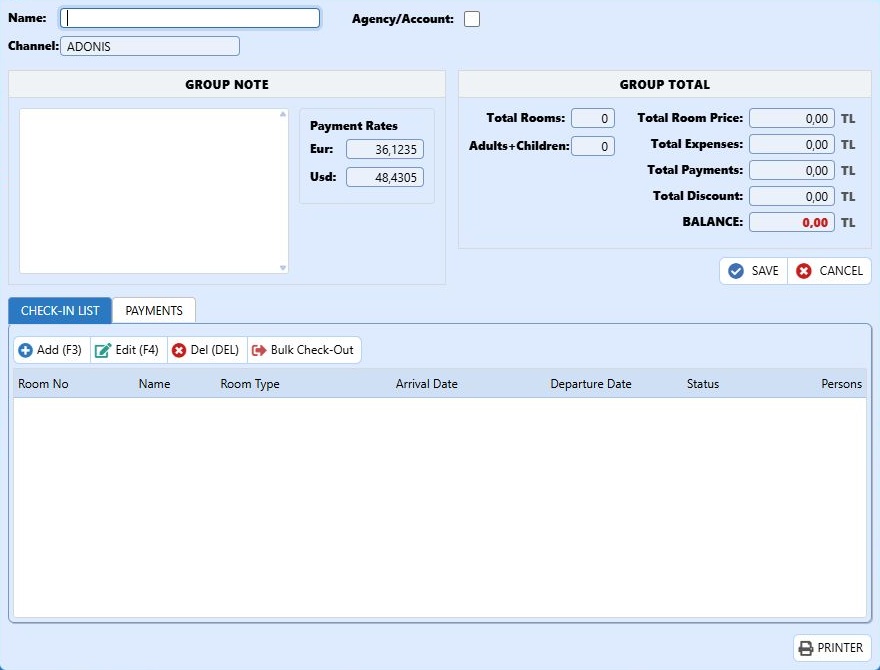
Open the Accommodation option in the left menu and select Group Entry.
Edit the Name, channel, if any, Agent/Company, and Group Note information on the group screen. Create the accommodations within the group using Add (F3) in the Accommodations tab.
Check the total room, person, room rate, and balance fields. Make sure that all accommodations are in the correct group before completing the group record.
Group accommodation: group information, accommodations, and payments · Click to enlarge the image.
Accommodation
How to add extra expense/check to existing accommodation?
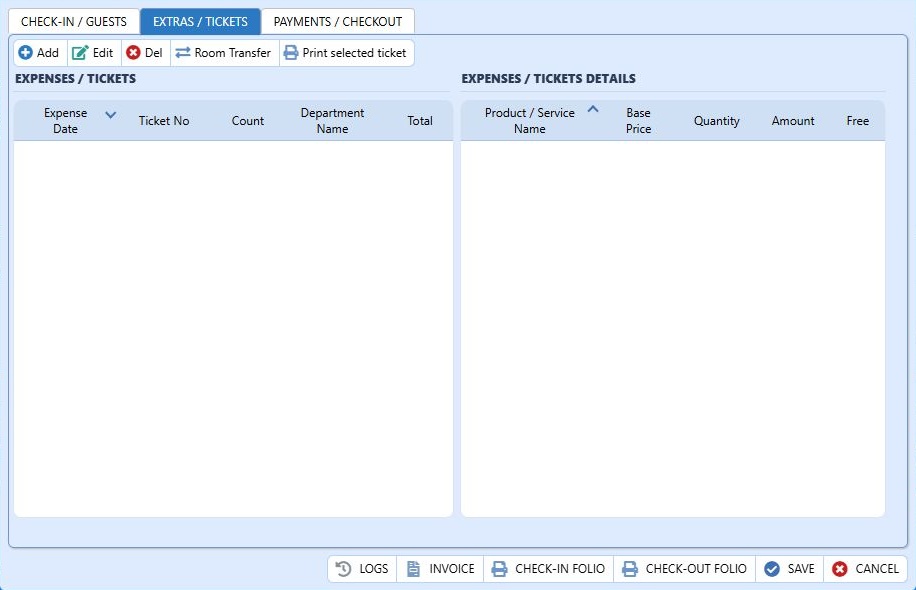
Open the EXPENSES / BILLS tab on the relevant accommodation card. In the expense list, there are Add, Edit, and Delete buttons; in the lower section, there are bill items.
When Add is selected for a new and not yet saved stay, the application informs that the stay will be automatically saved to add a check. Do not give this approval before the stay information is completed.
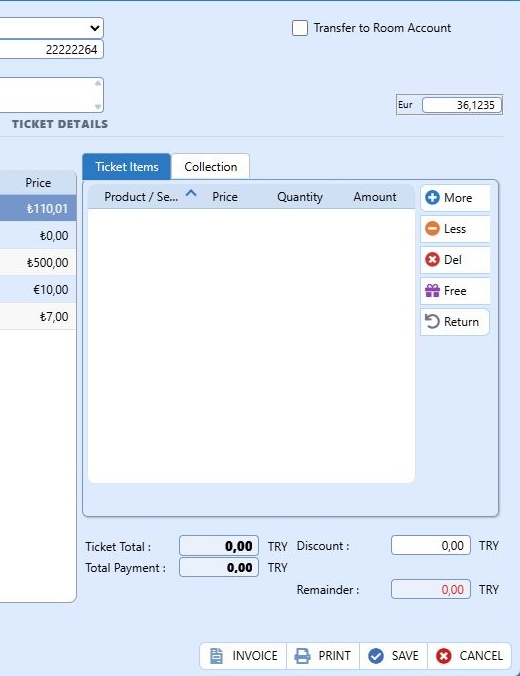
Stay card: expenses, checks, and check items · Click to enlarge the image.Check card: department, product items, complimentary and collection · Click to enlarge the image.
Accommodation
How is the payment process for accommodation done?
Open the PAYMENTS / CHECK-OUT tab on the stay card. Use the Add button in the payments list.
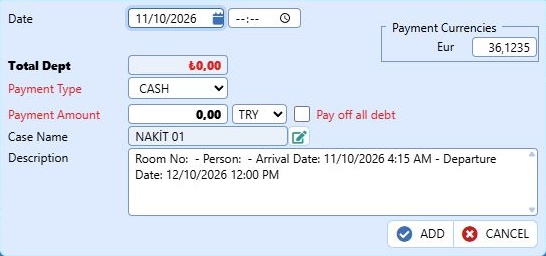
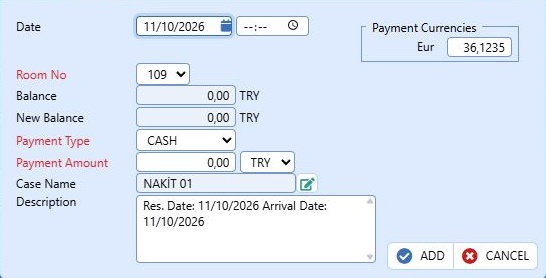
Check the Payment Type, Payment Amount, currency, Cash Register Name, date, and Description fields. Use the pay all debt option only if the entire balance has really been collected.
After adding the payment line with ADD, check the card's account summary and complete accommodation changes with SAVE.
Accommodation payment form: payment type, cash register, amount, and currency · Click to enlarge the image.
Accommodation
How to check out of accommodation?
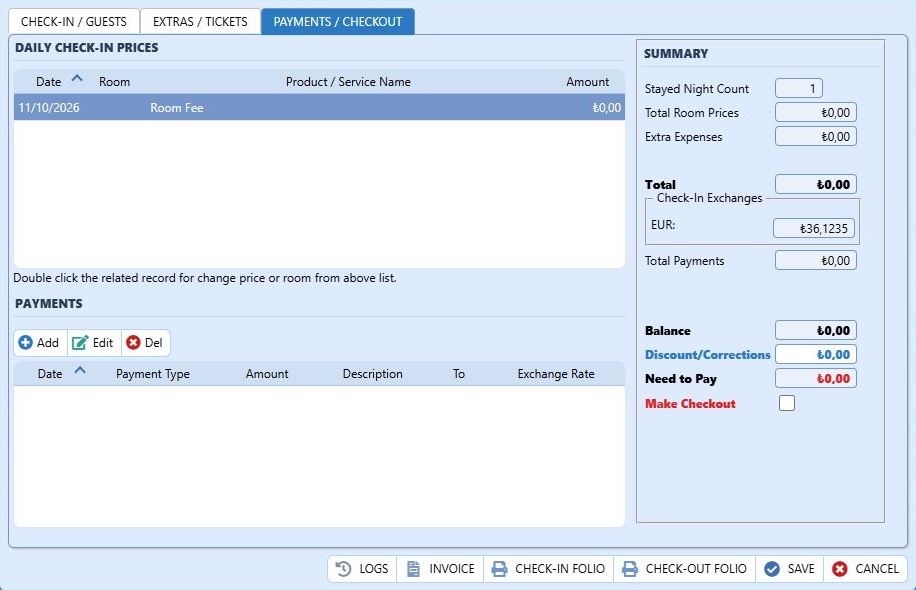
Open the PAYMENTS / CHECK-OUT tab on the accommodation card. In the Account Summary section, the total room price, expenses, payments, and balance are visible.
Check the account with the actual departure date; complete the necessary collection or account transactions.
Use the Checkout option in the account summary and complete the card with SAVE. Do not confuse the individual Checkout operation in the Guest List with the checkout of the entire stay.
Accommodation card: payments, account summary, and checkout · Click to enlarge the image.
Accommodation
How is the payment of accommodation changed?
Open the relevant stay and review the Payments list in the PAYMENTS / CHECKOUT tab.
Select the payment row you want to change and use the Change button. Compare the date, payment type, cashier, currency, and amount with the actual collection.
After completing the change, check the payment total and balance on the account summary and save the accommodation card.
Accommodation card: payments, account summary, and checkout · Click to enlarge the image.
Accommodation
How to delete an accommodation record?
In Front Office → Accommodation list, there is a Delete button. Before deleting, check the accommodation number, payments, expenses, and the invoice link, if any.
Accommodation card: check-in, room, rate, and guest information · Click to enlarge the image.
Accommodation
How to issue an invoice from accommodation?
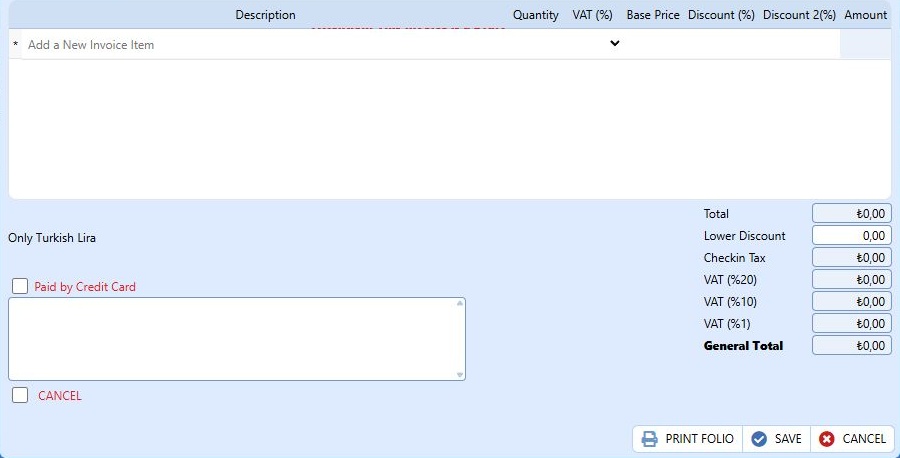
The INVOICE button at the bottom of the accommodation card is the entry point for invoice operations. In the invoice form, there are fields for recipient information, date, items, VAT, and total.
Check the recipient and the invoicing scope of the accommodation; compare which items the accommodation fee and other services have been allocated to.
Invoice form: items, VAT, discount, and total fields · Click to enlarge the image.
Accommodation
What should be done for accommodation with a changed departure date?
Adjust the Check-out Date and time fields on the accommodation card according to the new departure information.
In the PAYMENTS / CHECK-OUT tab, check the new date range, room rates, and account summary in the ACCOMMODATION PRICES table.
If the changed number of nights, total price, and balance are correct, complete the card by clicking SAVE.
Accommodation card: check-in, room, rate, and guest information · Click to enlarge the image.
Accommodation
Can a discount be applied when receiving payment?
In the Account Summary section of the PAYMENTS / CHECK-OUT tab, there are Discount/Adjustment and Amount Payable fields.
Check the reason and amount of the discount, then adjust the account summary; compare the final amount to be paid with the collection.
Accommodation card: payments, account summary, and checkout · Click to enlarge the image.
Accommodation
How can the debt of a room be transferred to another room or current account?
In the Payment form, the Payment Type list includes CURRENT ACCOUNT and TRANSFER options; in the expense tab, there is also a Transfer to Room button.
Payment/balance transfer and the room transfer of a specific bill are different transactions. First, determine which amount will be transferred to which account.
Accommodation payment form: payment type, cash register, amount, and currency · Click to enlarge the image.
Accommodation
How is the board type added/activated in accommodation?
In the accommodation check-in card, the board type field is directly available in the current version; here you can select the board type defined in your facility.
To define a new type, go to Management → Definitions → board types. The Mandatory board type parameter in Reservations and Check-in under Management → Definitions → Facility Information → Program Features regulates the necessity of selection.
The mandatory setting does not create a board type; first, check the type definition.
Accommodation card: check-in, room, rate, and guest information · Click to enlarge the image.Program features: reservation, boarding, time, VAT, and report settings · Click to enlarge the image.
Accommodation
How can a guest be taken on different dates in accommodation?
There is a Different Date button in the Guest List on the CHECK-IN / GUEST INFORMATION tab. Columns for Check-in Date and Check-out Date are shown for each guest in the list.
Select the guest for whom a different date will be applied and check the relevant date fields through this button.
Accommodation card: check-in, room, rate, and guest information · Click to enlarge the image.
Accommodation
How is a single departure done in accommodation?
The accommodation card has a Checkout button in the Guest List; this area is for guest-based actions. The Checkout option in the PAYMENTS / CHECKOUT section, however, is evaluated together with the accommodation account.
Select only the guest who is leaving; separately check the stay status of the other guests.
Accommodation card: check-in, room, rate, and guest information · Click to enlarge the image.
Accommodation
Can check-in/check-out time be added to accommodation?
In the current accommodation card, there are time fields next to the Check-in Date and Check-out Date. You can adjust the actual check-in/check-out times here.
The requirement to enter the time is regulated in Management → Definitions → Facility Information → Program Features under the Time Mandatory During Accommodation Check-in parameter.
Check the date and time together and record the card.
Accommodation card: check-in, room, rate, and guest information · Click to enlarge the image.Program features: reservation, boarding, time, VAT, and report settings · Click to enlarge the image.
Accommodation
How is agency selection done in accommodations?
The Accommodation check-in card has an Agency/Company field. Use the relevant option to select the account associated with the accommodation.
If the agency account is not defined, check the account under Accounting → Current Accounts; in the updated current card, there is an Agency option for Account Type.
After verifying that the selected account is the correct business and checking the price/payment information, record the accommodation.
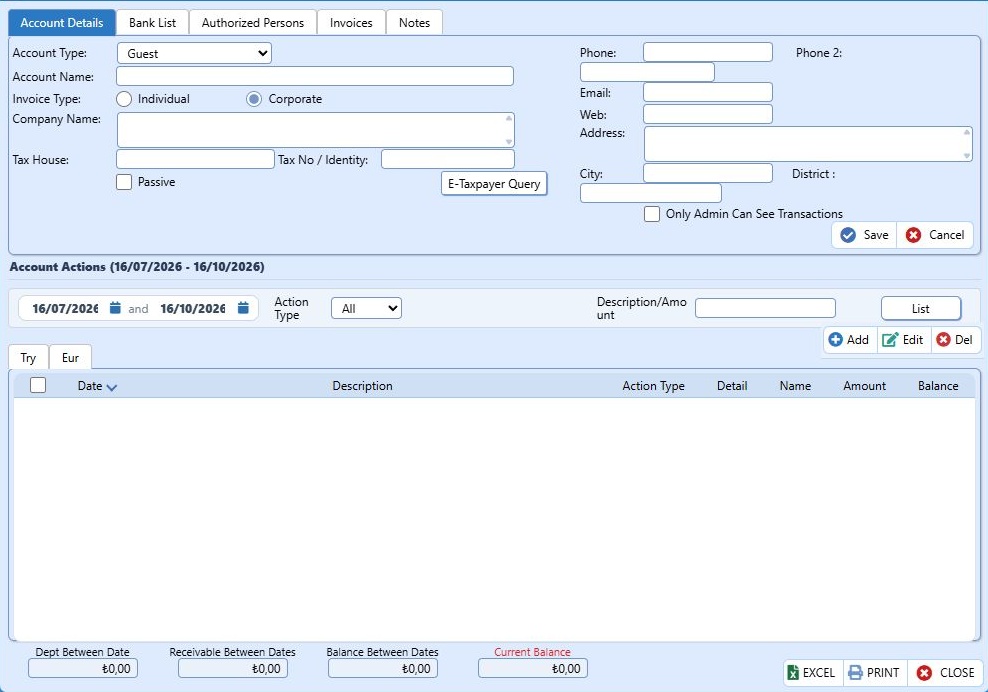
Accommodation card: check-in, room, rate, and guest information · Click to enlarge the image.Current account card: account type, invoice information, and transactions · Click to enlarge the image.
Accommodation
How do you provide a guest with a folio statement?
Use the CHECK-IN SLIP or CHECK-OUT SLIP button located beneath the accommodation card. There is also a Print Slip shortcut in the accommodation list.
Before printing, check the accommodation dates, expenses, payments, and balance. The slip is an account statement; the invoice process is initiated from the separate INVOICE button on the card.
Accommodation card: payments, account summary, and checkout · Click to enlarge the image.
Accommodation
How is a staying guest blacklisted?
On the accommodation card, open the card of the relevant guest from the CHECK-IN / GUEST INFORMATION tab.
In the Other Information section of the guest card, there is a Blacklist field. Make sure you have selected the correct person and adjust this field after checking the relevant notes.
Check and complete the changes on the guest card and the main accommodation card separately.
Guest card: identity and contact fields, blacklist · Click to enlarge the image.
Accommodation
How can I change rooms in accommodations?
There is a Room field on the accommodation entry card. The ACCOMMODATION PRICES table in the PAYMENTS / CHECK-OUT tab also shows the note: "Double-click the desired date to change the room number or price."
Separate the room change starting from a specific date with the room selection for the entire stay. Check the date the change will be applied and the availability of the new room.
Accommodation card: payments, account summary, and checkout · Click to enlarge the image.
Reservations
How to add a new reservation?
Open the Reservation option in the Front Office left menu.
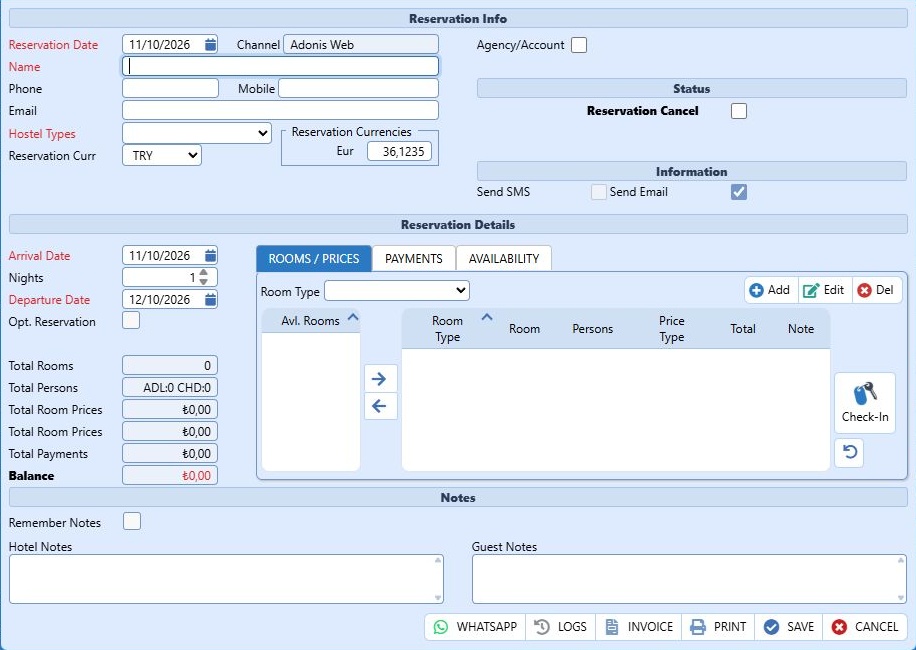
Enter the name and contact information, arrival/departure dates, currency, and board type if any. In the Rooms / Prices section, select the room type and use Add to add a room row.
Check the number of people, Price Code, and amount from the room row. If the total rooms, people, price, and balance are correct, use the Save button.
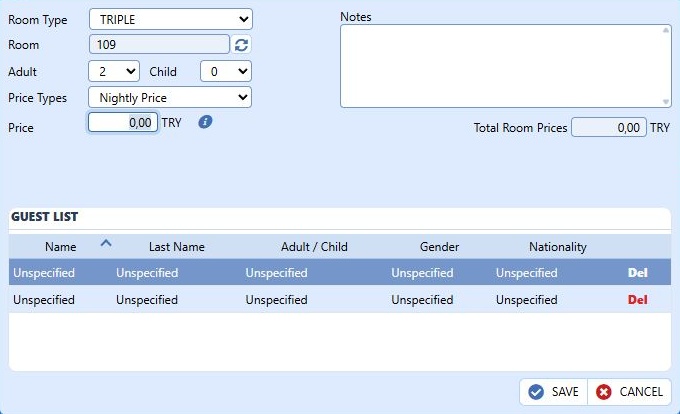
Reservation card: contact, board type, dates, and rooms · Click to enlarge the image.Reservation room detail: number of people, room selection, and price code · Click to enlarge the image.
Reservations
Can I take an advance payment for the reservation?
Use the Add button from the Payments tab on the reservation card.
Enter the fields Date, Payment Type, Payment Amount, currency, Cash Register Name, and Description. Only record the prepayment that has actually been received.
After ADD, check the Total Payments and Balance fields on the reservation card; complete the card with Save.
Reservation prepayment form: amount, payment type, and cash register · Click to enlarge the image.
Reservations
How to cancel an incoming reservation?
In the Status section of the relevant reservation card, there is a Reservation Cancellation field.
Arrange the cancellation process by checking the reason for cancellation and the actual status of the reservation. If there is a prepayment, also check the refund/collection status.
Save the card and check its status in the reservation list. Do not assume that the cancellation mark means the bank or card has automatically refunded the payment.
Reservation card: contact, board type, dates, and rooms · Click to enlarge the image.
Reservations
Where can I see the reservations I saved?
You can access registered reservations from the Reservations option in the Front Office top menu. The Reservation option in the left menu opens a new card.
Open the record you are looking for from the list; check the name, arrival/departure dates, room, and payment information to make sure you have selected the correct reservation.
Reservation card: contact, board type, dates, and rooms · Click to enlarge the image.
Reservations
How can I transfer a reservation record to accommodation?
There is an Entry shortcut in the Rooms / Rates section of the reservation card. First, check the room number, number of guests, dates, and price of the relevant room row.
Use the check-in process when the guest actually arrives, completing the identity and accommodation information.
Reservation room detail: number of people, room selection, and price code · Click to enlarge the image.
Reservations
How to add/activate board type to the reservation?
From the board type list on the reservation card, select the type defined in your facility. New definitions are made through Management → Definitions → board types.
The requirement for selection is adjusted through Management → Definitions → Facility Information → Program Features under the parameter Mandatory board type for Reservation and Check-In.
board type and Price Code are different fields; check both according to the conditions of the reservation.
Reservation card: contact, board type, dates, and rooms · Click to enlarge the image.board type definition: name and passive status · Click to enlarge the image.
Reservations
How to make room blocking mandatory in a reservation?
Open Management → Definitions → Facility Information → Program Features.
Adjust and save the 'Room Selection Mandatory for Reservations' parameter according to the operation style of your facility.
This setting determines the obligation of room selection. Check the distinction between room type and room number on the reservation card; selecting a room type alone does not constitute a specific room blocking.
Program features: reservation, boarding, time, VAT, and report settings · Click to enlarge the image.
Reservations
How to add multiple rooms to a reservation?
Open the Rooms / Prices section on the reservation card. Select the Room Type and add a room row using the Add button; repeat the process for additional rooms.
Check or change each line for room number, number of adults/children, Price Code, price, and note information from the line details.
After checking the Total Room, Total Person, and Total Room Price fields, save the reservation.
Reservation room detail: number of people, room selection, and price code · Click to enlarge the image.
Reservations
How to enter company/agency to the reservation?
Select the linked account using the Agency/Company field on the reservation card.
Check the correct agency/company record in Accounting → Accounts Receivable. The Account Type, Invoice Type, and title information of the customer card are separate fields.
After selecting the account associated with the reservation, check the date, price, and payment information, then save the card.
Reservation card: contact, board type, dates, and rooms · Click to enlarge the image.Current account card: account type, invoice information, and transactions · Click to enlarge the image.
Reservations
Can a reservation be saved without assigning a room?
Whether recording is allowed or not should be checked depending on the parameter 'Room Selection Mandatory' in Program Features under Reservations.
Reservation room detail: number of people, room selection, and price code · Click to enlarge the image.Program features: reservation, boarding, time, VAT, and report settings · Click to enlarge the image.
Reservations
How to send SMS or email to a saved reservation?
In the reservation card, there are options 'Send SMS' and 'Send E-Mail' in the Information section; the communication fields must be filled in correctly.
Reservation card: contact, board type, dates, and rooms · Click to enlarge the image.
Reports
How can the Finance report output be customized?
Open Management → Definitions → Facility Information → Program Features.
In the Finance Report Printing Settings, adjust the top, right, and left margin areas with 'Show Finance Report Header'; spaces are displayed in mm.
After saving, check the print preview from Accounting → Reports → Finance Report.
Program features: reservation, boarding, time, VAT, and report settings · Click to enlarge the image.
Reports
From which report can I see the transactions made by Adonis users?
There is also a LOGS button under the card for a stay's own transaction history. Do not confuse the user, record, and date range you are reviewing.
Management menu: room, rate, board, product, and user definitions · Click to enlarge the image.
Reports
Which report shows the facility's monthly and yearly income/collections?
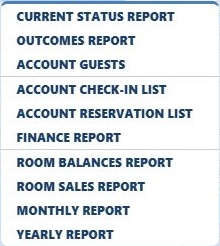
Under Accounting → Reports, there are Monthly Facility Report and Annual Facility Report. Open the relevant report for the monthly and annual scope.
Revenue and collection are not the same concept: evaluate accommodation/service fees and cash collections separately. The Accounting Overview screen also shows monthly income-expense and today's collection/payment summaries.
Accounting reports: income, expense, room sales, and facility reports · Click to enlarge the image.
Reports
From which reports can I see people who have previously stayed at the facility?
Front Office → In the Accommodations list, there are Departed and All filters; search previous accommodations within this scope.
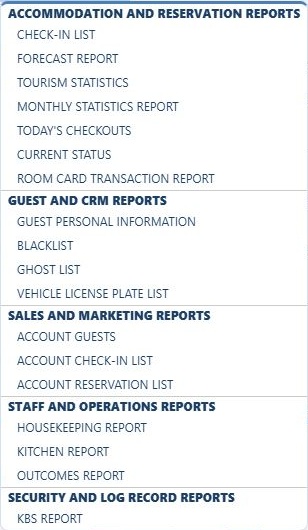
Front office reports: accommodation, occupancy, guest, and notification reports · Click to enlarge the image.
Reports
From which report can I check the people reported to KBS?
Front Office → Reports → Open the KBS Instant Notification Report. You can also access Identification Notification procedures from the left menu.
Review the report within the relevant record and date range; also check that all required fields on the guest card are completed. Do not consider a guest's presence in the accommodation list as a successful notification result.
Front office reports: accommodation, occupancy, guest, and notification reports · Click to enlarge the image.
Reports
In which report can I see the facility's estimated occupancy rate?
Front Office → Reports → Open the Forecast Report. Check the coverage of future bookings and stays for the projected occupancy.
Separate the forecast information from the current occupancy indicator; review the date range and registration statuses covered by the report.
Front office reports: accommodation, occupancy, guest, and notification reports · Click to enlarge the image.
Reports
From which report can I see the document requested by the Ministry of Tourism?
In the Front Office → Reports menu, Tourism Statistics and Monthly Statistics Report are available.
Open the relevant report according to the requested document and check the period and facility coverage. The existence of the report does not indicate that the same output is sufficient for every official request.
Front office reports: accommodation, occupancy, guest, and notification reports · Click to enlarge the image.
Reports
From which report can I access the expenses processed through the system?
Accounting → Reports → Use the Expense Report. The same report is also available in the Front Office report menu.
Check the date range and expense records you are reviewing. Separate cash outflow from expense classification; not every cash outflow may be marked as an expense.
Accounting reports: income, expense, room sales, and facility reports · Click to enlarge the image.
Reports
From which report can I see the operations performed in depots and stocks?
The Stock option in the accounting module opens the Warehouse & Stock Report.
Do not consider the instantaneous quantity as the same result as the transaction breakdown.
Stock report: transactions, filters, and current stock status · Click to enlarge the image.
Reports
From which report can I access the vehicle information of a customer whose vehicle information is recorded?
Front Office → Reports → Open the Vehicle Plate List. The Vehicle Plate No field is located on the guest card.
Check the person you are looking for and the scope of the record. If the plate is not registered on the card, do not expect it to appear in the report.
Front office reports: accommodation, occupancy, guest, and notification reports · Click to enlarge the image.
Reports
From which report can I see the daily status of the facility (accommodation income, profit-loss, cash register, current account, etc.)?
Under Accounting → Reports, find the Instant Status Report; under Front Office → Reports, find Instant Status. Review the current operation summary from the relevant report.
Also check the revenues-expenses, today's collections/payments, and cash balances on the Accounting Overview screen. Compare the reviewed date with the Adonis Date on the top bar.
Accounting reports: income, expense, room sales, and facility reports · Click to enlarge the image.
Channel Management
How is website integration done?
Open the Channel Setup Wizard through Channel Management → Setup. Select Adonis as the Channel Manager and Website as the Channel to be set up.
On the current screen, there are fields for Domain Name, Password, Sales Type, Integration Type, and Currency. In the wizard, the next headings are Room Type Mapping, Price Rules, and Summary and Submission.
Website link: domain name, integration type, and currency · Click to enlarge the image.
Channel Management
How is Hotelrunner integration done?
In Channel Management → Setup wizard, select HotelRunner as the Channel Manager.
The current form requires Hotel Code, API Key, Sales Type, Integration Type, and Currency. There is also an option to Check the Information.
HotelRunner connection: hotel code, API key, and integration scope · Click to enlarge the image.
Channel Management
How is Reseliva integration done?
Channel Management → In the setup wizard, select Adonis as the Channel Manager and Reseliva as the Channel to be Installed.
On the current screen, the fields Hotel Code, Sales Type, Integration Type, and Currency are displayed. Check your property's Reseliva connection information.
Reseliva connection: hotel code, sales type, and integration scope · Click to enlarge the image.
Channel Management
How is Booking.com integration done?
Channel Management → In the setup wizard, select Adonis as the Channel Manager and Booking.com as the Channel to be Installed.
The current form shows the fields Hotel Code, Sales Type, Integration Type, and Currency. Verify the Booking property code and the connection scope.
Booking.com link: hotel code and integration scope · Click to enlarge the image.
Channel Management
What is the use of the calendar screen?
Channel Management → Calendar screen is used to compare room types with dates. It has Start/End date, channel selection, Previous/Next, and List controls.
You can simplify the view with the options Hide Price, Hide Available Room Count, and Hide Reservation Count.
Bulk Update and Resend Calendar are separate action buttons; you do not need to resend just for viewing.
Channel calendar: date range, channel, and view options · Click to enlarge the image.
Channel Management
How can I do bulk updating?
Open the Bulk Update wizard in Channel Management. In Update Information, select the Start/End dates and the days of the week to apply.
In Update Type, specify Room Count, Base Rate, Single Rate, MIN, Close to Sale, CTA, or CTD scope. Check the values of the relevant room types and the Update Currency.
The next step is Channels, followed by Preview and Approval. Do not approve without checking the channel to be sent and its scope.
Bulk channel update: date, day, and update type · Click to enlarge the image.
Cash Registers
How is a new cash register defined?
Use the Add button on the Accounting → Cash and Bank screen.
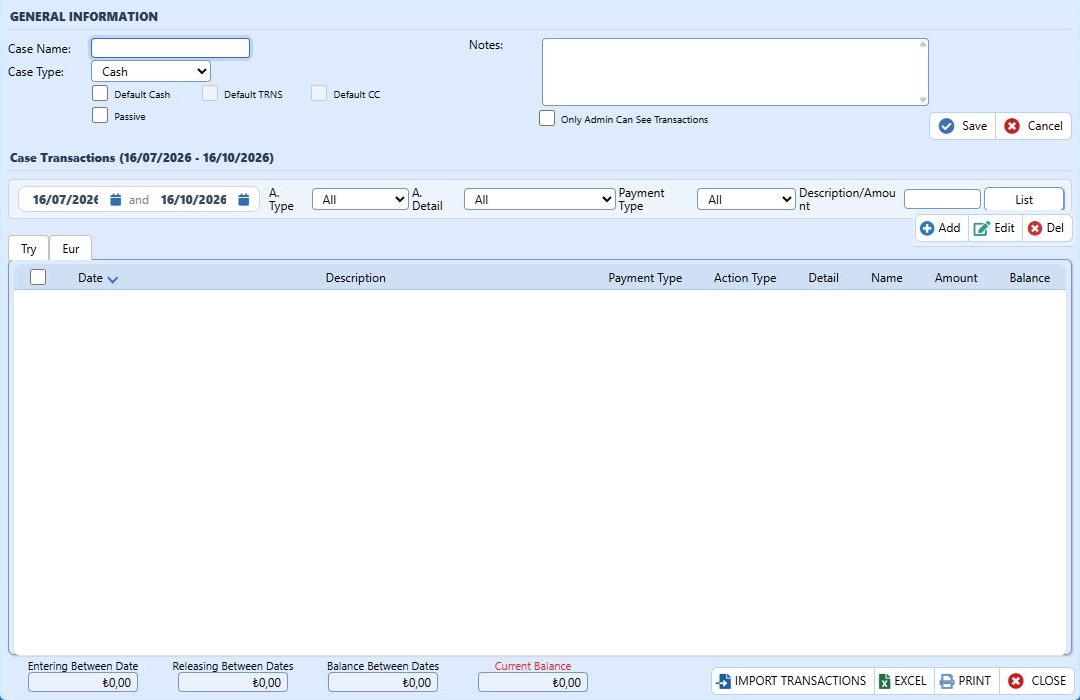
Enter the Cash Name and Cash Type. Current types are Cash, Bank Account, Credit Card / POS, Other, and Undefined. If necessary, select the appropriate default cash option and edit the notes.
Use the Save button by checking the fields Passive and Movements Visible Only to Admin.
Cash card: definition information, transaction filters, and balance · Click to enlarge the image.
Cash Registers
How can an unused cash register be deactivated?
In Accounting → Cash and Bank, open the relevant cash account.
Edit and save the Inactive field in the General Information section. Check that you have selected the correct cash account, its balance, and default cash selections.
Deactivating a cash account is different from deleting a cash transaction or cash record.
Cash card: definition information, transaction filters, and balance · Click to enlarge the image.
Cash Registers
How can I access the transaction details entered in the cash register?
In Accounting → Cash and Bank, open the relevant cash account. Use the Cash Transactions section at the bottom of the card.
Adjust the start/end dates, T. Type, T. Detail, Payment Type, or Description/Amount filter and press the List button.
Check the currency tabs and the total entries/exits/balance between dates.
Cash card: definition information, transaction filters, and balance · Click to enlarge the image.
Cash Registers
How can I process cash inflows/outflows in the register other than for accommodation?
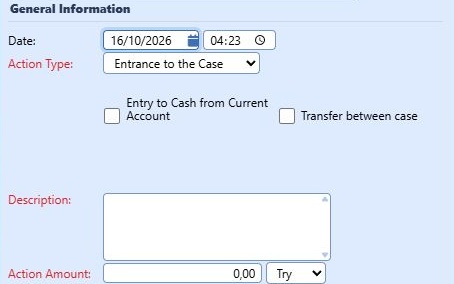
Use the Add button in the Cash Transactions section of the relevant cash account card.
Select the Transaction Type as Cash In or Cash Out; enter the date, Description, Transaction Amount, and currency.
Use the Current Account, cash-to-cash transfer, or Expense options only if the transaction falls within that scope. Check the Total Balance and New Balance fields and save.
Cash transaction: date, entry/exit, description, and amount fields · Click to enlarge the image.
Cash Registers
How is an expense from the cash register processed?
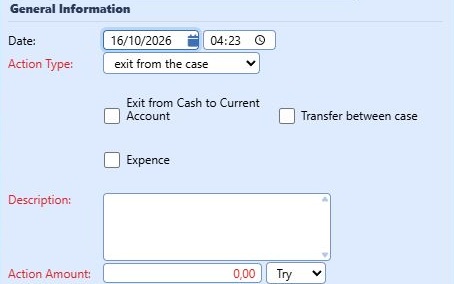
Open the Cash Transactions → Add form on the cash card. Select Cash Out as the Transaction Type.
Use the Expense option to determine the expense item; check the description, date, amount, and currency.
Save if the New Balance is correct. Remember that selecting only cash out is different from classifying it as an expense.
Cash out: expense, description, amount, and currency · Click to enlarge the image.
Cash Registers
How can I see payments coming in or entered in different currencies in the cash register?
Select the relevant currency and list it with the same date and transaction filters. Check the amount together with the exchange rate information.
Cash card: definition information, transaction filters, and balance · Click to enlarge the image.
Current Accounts
What is a current account and what is it used for?
The current account is a record where your business tracks the debt/credit and payment relationship with a guest, supplier, or agent.
In the current account card, the Account Type options are Guest, Supplier, Guest & Supplier, and Agent. The Individual/Corporate selection in the Invoice Type is kept separate from this.
In Account Transactions, debt, credit, balance, and defined currencies are monitored.
Current account card: account type, invoice information, and transactions · Click to enlarge the image.
Current Accounts
How is a new current account added?
Use the Add button from the Accounting → Current Accounts screen.
Enter the Account Type and Account Name. Fill in the Invoice Type, title/tax information, and communication fields for the correct account.
Edit the Bank Information, Authorized Persons, and Notes tabs as needed. Check the passive and access options and save.
Current account card: account type, invoice information, and transactions · Click to enlarge the image.
Current Accounts
Where can I track transaction details related to a current account?
In Accounting → Current Accounts, open the relevant account. Go to the Account Transactions section.
Select the date range, Transaction Type, or Description/Amount filter and use the List button. Select the tab of the defined currency.
Take into account the different scope of the Debit/Credit between dates and Current Balance fields.
Current account card: account type, invoice information, and transactions · Click to enlarge the image.
Current Accounts
How can I add debit or credit to a current account?
Open the Add form from the Account Transactions section of the Current Card.
Select the Transaction Type as Document, and the Detail field as Add Debit to Account or Add Credit to Account.
Check the Date, Description, Transaction Amount, and currency; record it by reviewing the New Balance. If you are collecting cash, use the appropriate Cash transaction instead of Document.
Current account card: account type, invoice information, and transactions · Click to enlarge the image.
Current Accounts
How is a collection made from a current account?
In the Account Card's Account Transactions → Add form, select Cash as the Transaction Type.
In the details, select Collect from Account; edit the collection type, Cash Register Name, amount, currency, and description.
Record the Payment from Account to Cash by checking the Total Balance and New Balance fields. The Make Payment to Account option is for the reverse transaction.
Current account card: account type, invoice information, and transactions · Click to enlarge the image.
Current Accounts
How is an invoice issued to a current account?
The Add button in the Invoices tab of the Account Card opens the invoice form.
From the Name/Search field on the form, check the recipient; address, tax information, date, items, quantity, VAT, and totals. Evaluate the option to add debt to the customer card according to the scope of the operation.
Current account card: account type, invoice information, and transactions · Click to enlarge the image.Invoice form: items, VAT, discount, and total fields · Click to enlarge the image.
Warehouses/ Stock Definitions
How is a new warehouse defined in Adonis?
The warehouse definition determines at which location stocks will be tracked. Specify a clear name and usage purpose for the new warehouse.
Arrange the warehouse structure of your facility and active stock coverage together with the Adonis support team. You can track product movements from Accounting → Stock screen.
Warehouses/ Stock Definitions
How to deactivate an active warehouse?
When determining the warehouse to be deactivated, evaluate its current stocks and ongoing operations.
Complete the necessary stock adjustments; coordinate the warehouse usage status with the Adonis support team according to your facility's stock management scope. You can review past movements from the Stock screen.
Warehouses/ Stock Definitions
If there are multiple warehouses, how is one selected as default?
The default warehouse is intended to determine the starting location to be used in stock transactions. First clarify the purpose of the warehouses and their relation to departments.
Establish your facility's default warehouse layout with the Adonis support team; check from the Stock reports that inbound and outbound movements are being tracked at the correct location.
Warehouses/ Stock Definitions
Where can I track warehouse movements?
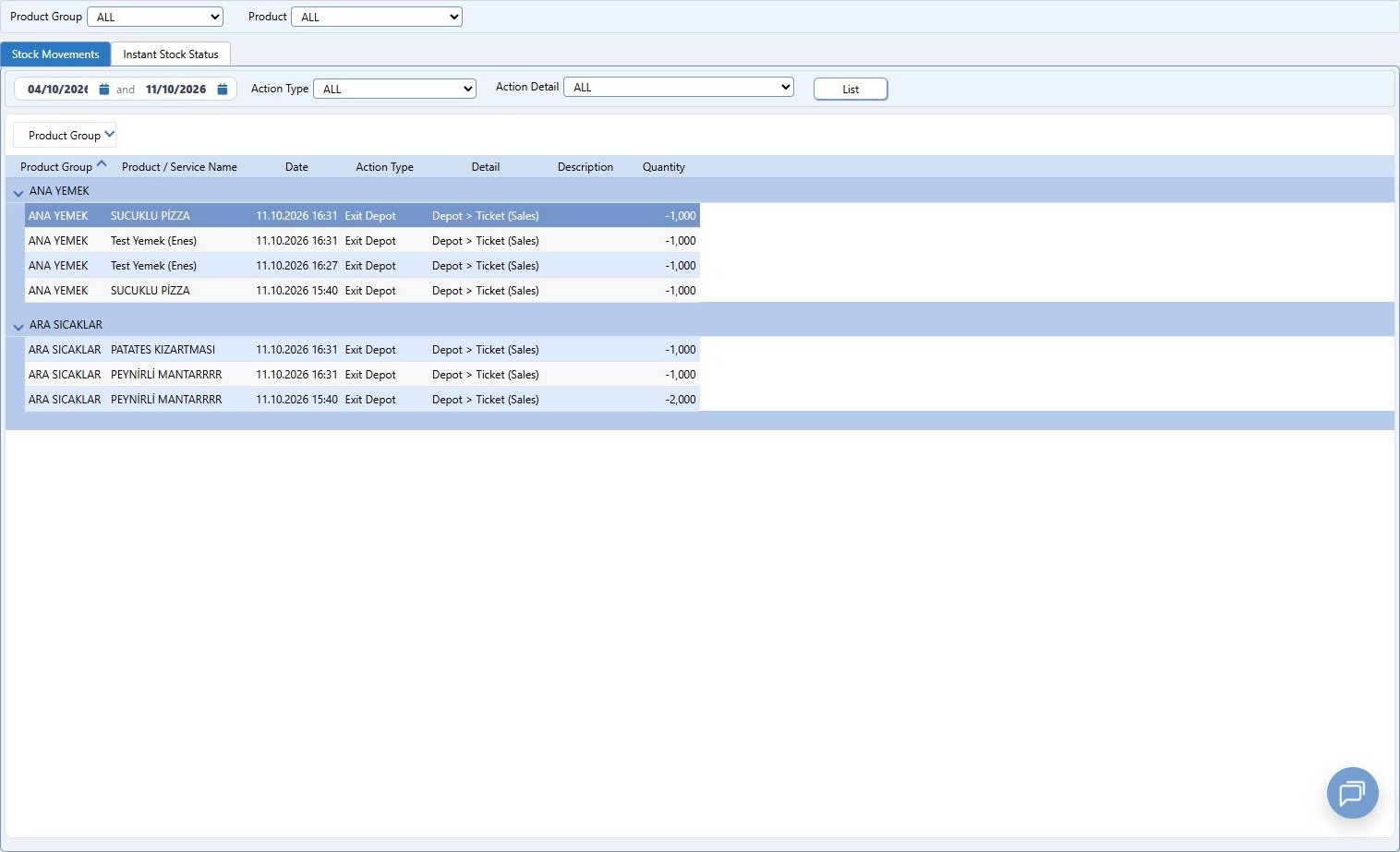
Accounting → Open the Warehouse & Stock Report through Stock. In the Stock Movements tab, there are filters for date range, product, and product group.
Select the Movement Type and Movement Detail, then use the List button. Check the quantity and movement descriptions.
Use the separate Current Stock Status tab for existing quantities.
Stock report: transactions, filters, and current stock status · Click to enlarge the image.
Warehouses/ Stock Definitions
How to make stock entry/exit to the warehouse?
For stock entry, prepare product, quantity, unit, and cost information; for stock exit, prepare product, quantity, and transaction reason.
Arrange the record process of your facility's active stock coverage together with the Adonis support team. Afterwards, check the movement by date and product under Accounting → Stock → Stock Movements.
Stock report: transactions, filters, and current stock status · Click to enlarge the image.
Warehouses/ Stock Definitions
How to transfer between warehouses?
In inter-warehouse transfers, the source warehouse, target warehouse, product, unit, and quantity must be consistent with each other.
Arrange the transfer record within the scope of your facility's active stock management together with the Adonis support team. Afterwards, compare the stock statuses of the source and target.
Stock report: transactions, filters, and current stock status · Click to enlarge the image.
Warehouses/ Stock Definitions
What do (-) values in stocks mean?
Negative stock quantity indicates that the calculated quantity of the relevant product is below zero. By itself, it cannot be said that this is solely due to sales.
Accounting → Stock → In Stock Movements, compare the product's entry, exit, and transfer scope with its current quantity in Instant Stock Status.
Stock report: transactions, filters, and current stock status · Click to enlarge the image.
Personnel Operations
How can I register an employee in Adonis?
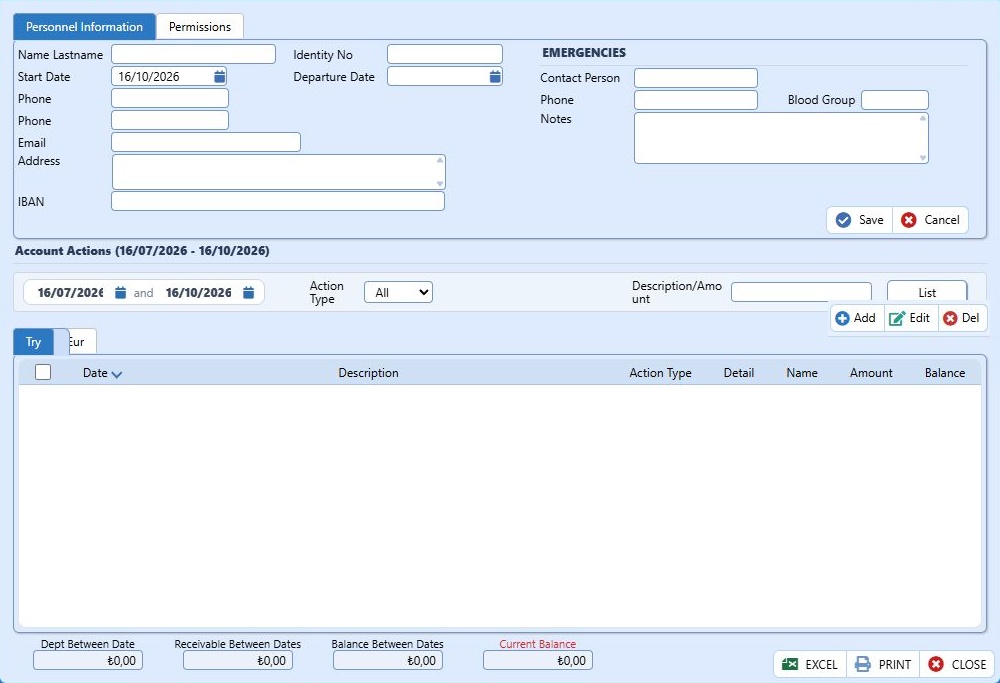
Use the Add button on the Accounting → Personnel screen.
In the Personal Information tab, fill in the Full Name, start date, and relevant contact fields. Check other necessary fields according to your facility's personnel record.
Verify the correct person and dates, then click the Save button.
Personnel card: personal fields, start and departure dates · Click to enlarge the image.
Personnel Operations
Can debt or credit be added to an employee?
Under the personnel card, there is an Account Transactions section; totals for debt, credit, and balance are shown with the Cash/Documents filters.
Do not assume that performing the same transaction with the personnel account on another current account is equivalent.
Personnel card: personal fields, start and departure dates · Click to enlarge the image.
Personnel Operations
How do I record the employee's leave in the system?
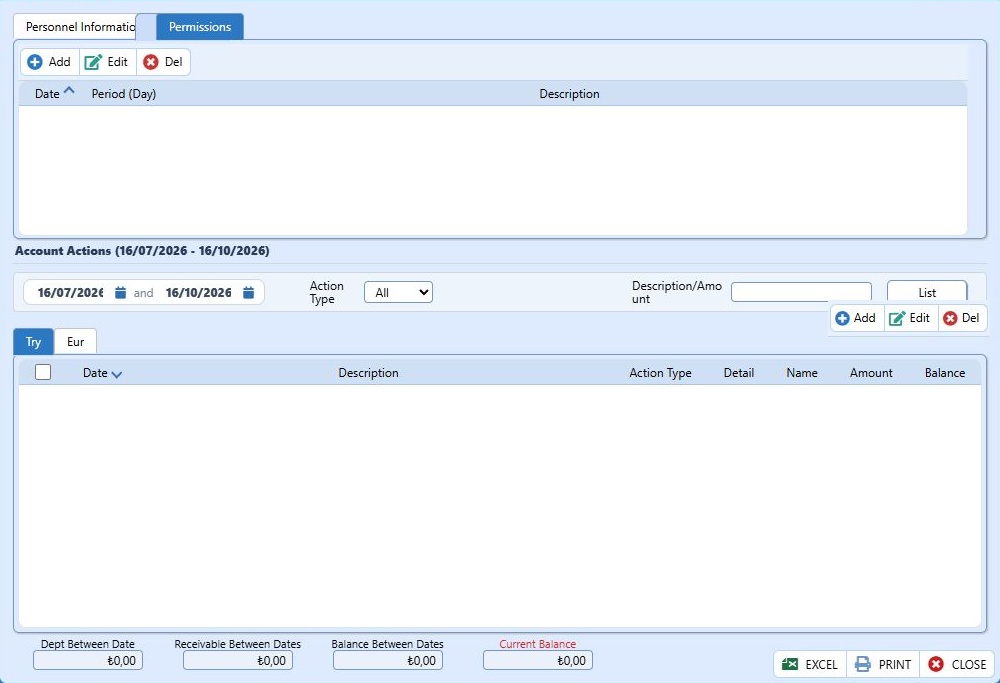
Open the relevant personnel card from the Accounting → Personnel screen. There is an Add button in the Permissions tab.
The fields Leave Date, Leave Duration (Days), and Description are shown in the list. Edit the leave record within the correct personnel and date scope.
After completing the leave and personnel card changes, check the record in the list.
Personnel card: leave date, leave duration, and description · Click to enlarge the image.
Personnel Operations
How can I process separated personnel in Adonis?
Accounting → Open the relevant card from Personnel. Edit the Departure Date in the Personal Information tab according to the actual departure information and save.
There are Active Personnel and Departed Personnel filters in the personnel list; check in the correct scope.
Personnel record and application user account are different; do not assume that personnel departure automatically disables user access.
Personnel card: personal fields, start and departure dates · Click to enlarge the image.
Room Definitions
Where can a new room type be added, or can changes be made to an existing room type?
Management → Definitions → Room Types screen.
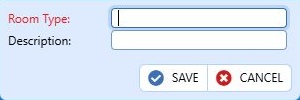
Fill in the Room Type and Description fields on the new card with Add. Open and edit the relevant record for the existing type.
Save by checking the type name and linked rooms. Room type definition and channel room type mapping are separate scopes.
Room type definition: room type name and description · Click to enlarge the image.
Room Definitions
How is the process of adding or deleting a room done?
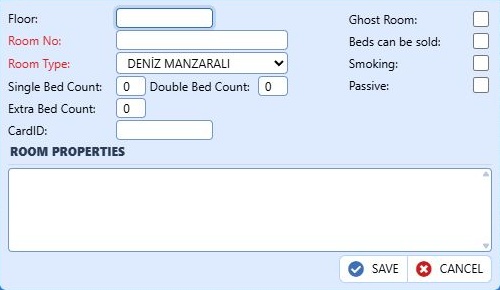
On the Administration → Definitions → Rooms screen, the Room Detail card is opened with the Add button. You can save the new room by checking the floor, room number, room type, number of beds, and features.
Room definition: floor, room number, room type, and bed features · Click to enlarge the image.
Room Definitions
How is a room deactivated?
From Management → Definitions → Rooms screen, open the relevant room card.
Edit and save the Passive field on the Room Detail card. The scopes include Active Rooms, Passive Rooms, and All.
Check the room number and current connections; do not confuse the Passive field with the Faulty cleaning status.
Room definition: floor, room number, room type, and bed features · Click to enlarge the image.
Room Definitions
What does the colored view of the rooms indicate?
The Empty, Occupied, Dirty, Faulty, and Reserved labels and filters on the Reception screen are used to distinguish room statuses. Guests checking out today are a separate filter.
Base on the status text on the card and the selected filter. Cleaning status and occupancy status can be seen together.
Do not assume a fixed blue/red/green color match for each view; check the status labels of the current screen.
Reception: room statuses and view filters · Click to enlarge the image.
Room Definitions
Where can I view the room sales report?
Accounting → Reports → Open Room Sales Report.
Review the sales information by checking the relevant period and room/room type coverage. Do not assume the report total is the same as the collection total.
Accounting reports: income, expense, room sales, and facility reports · Click to enlarge the image.
Price Types
How to create a new price type?
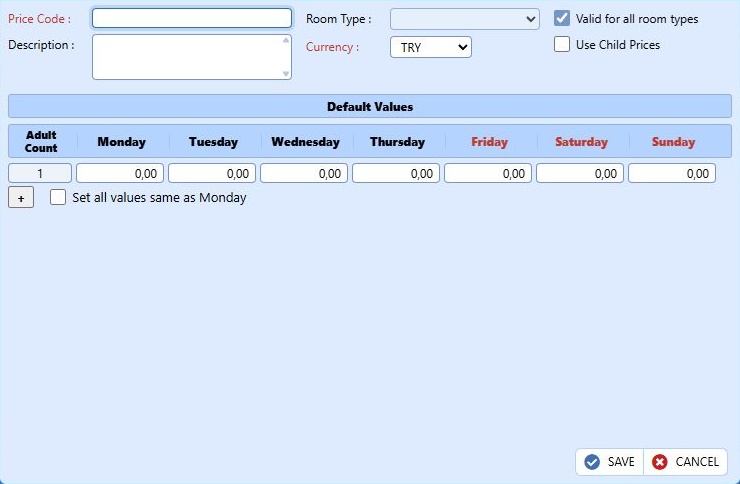
Management → Definitions → Price Types opens the current Room Price Definition screen. Use the Add in Default Values (F3) button.
Select the Price Code, Description, room type coverage, and Currency. Separate a specific room type selection with the option that applies to all room types.
Check the number of adults and prices for the days of the week, and complete with SAVE.
Price type: room coverage, currency, children, and weekly prices · Click to enlarge the image.
Price Types
How can I select the price type I created on the accommodation or reservation screen?
Select the defined code from the Price Code field on the accommodation entry card. Open the details of the relevant room line in the reservation and use the Price Code field.
Check the room type, number of people, date, and currency. After selecting the code, make sure that the calculated total matches the agreed price.
Reservation room detail: number of people, room selection, and price code · Click to enlarge the image.
Price Types
How can a separate price category be added for children?
Administration → Definitions → From Price Types, open the relevant price card. The option Use Child Prices is available on the card.
Check the prices to be applied for adult and child numbers under the same price code; do not confuse the amount entered for a child with the adult price.
Complete the process by checking the number of children in the accommodation/reservation room line and the calculated total.
Price type: room coverage, currency, children, and weekly prices · Click to enlarge the image.
Price Types
How can I set different prices on different days?
In the Management → Definitions → Price Types screen, there are Default Values, Weekly Update, and Bulk Update tabs.
Check the correct price code, room type, currency, and date range. Bulk sending of channel prices is a separate process in Channel Management.
Price type: room coverage, currency, children, and weekly prices · Click to enlarge the image.
Board types
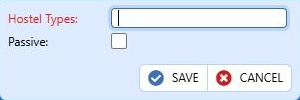
How is a board type created?
Use the Add button on the Management → Definitions → board types screen.
Enter the name of the board type; check the Passive field and click the Save button.
To use the definition, select it from the board type list on the accommodation or reservation card.
board type definition: name and passive status · Click to enlarge the image.
Board types
How is a board type selection field added to the accommodation card or reservation screen?
The board type field is directly found on current accommodation and reservation cards. First, make sure that the definition you will use in Management → Definitions → board types is active.
Management → Definitions → Facility Information → Program Features: the 'board type Mandatory at Reservation and Check-in' parameter regulates the requirement to select; it does not create a new board type to display this field.
Accommodation card: check-in, room, rate, and guest information · Click to enlarge the image.Program features: reservation, boarding, time, VAT, and report settings · Click to enlarge the image.
Board types
How is an already created board type deactivated?
Open the relevant record from Management → Definitions → board types.
Edit the Passive field and use the Save button. Check that you have selected the correct type and the scope of use.
Separate the process of deactivating from changing the selected board type in current accommodations.
board type definition: name and passive status · Click to enlarge the image.
User Operations
How is a new user added to Adonis?
Use the Add button on the Management → Definitions → Users screen.
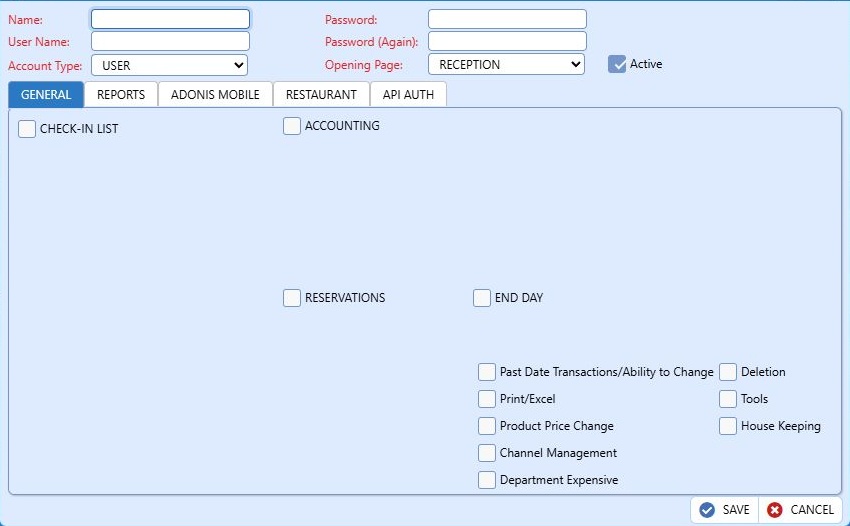
Edit the Name, Username, Account Type, Password/Repeat, and Home Page fields. Check its active status.
On the General, Reports, Adonis Mobile, Restaurant, and API Permissions tabs, assign only the necessary permissions and save. Do not perform this process with an account that does not have permission to create users.
User card: account type, active status, and transaction permissions · Click to enlarge image.
User Operations
I forgot my Adonis username or password, what can I do?
If you have forgotten your username or password, contact your facility manager or the Adonis support team.
Specify for which facility and user account you need assistance. Access procedures should be carried out for your own account; do not use another user's account.
Login screen: user information and language preference · Click to enlarge the image.
User Operations
How is an existing user account deactivated?
Go to Management → Definitions → Users and open the relevant user card.
Remove the Active status on the card and save the changes. The user list includes Active Users and Inactive Users scopes.
Check that you have selected the correct account; the departure date on the staff card and the active status of the user account are different.
User card: account type, active status, and transaction permissions · Click to enlarge image.
User Operations
How are the user's permissions restricted?
Management → Definitions → Open the relevant account from Users.
Review the Account Type and the permissions in the General, Reports, Adonis Mobile, Restaurant, and API Permissions tabs. Remove permissions that are not necessary for the job.
Save the change and check the relevant user's access to the necessary screens. Changing the password and restricting transaction authority are separate actions.
User card: account type, active status, and transaction permissions · Click to enlarge image.
User Operations
How is a deactivated user account reactivated?
Management → Definitions → Open the relevant account from the Passive Users section in the Users list.
Edit the Active status on the card; check the account type and permissions in the tabs before reactivating.
Register the correct user and check their status in the Active Users list.
User card: account type, active status, and transaction permissions · Click to enlarge image.
User Operations
What is the department user type?
In the current user card, Account Type options appear as User, Administrator, Department, and Mobile.
Before activating the user for the Department, verify the scope with your facility manager.
User card: account type, active status, and transaction permissions · Click to enlarge image.
User Operations
How to give Adonis Mobile permission to a user?
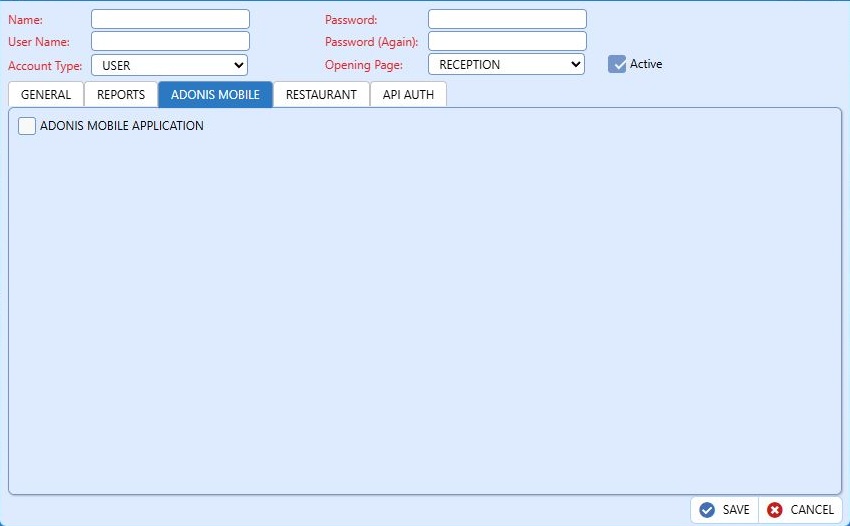
From Management → Definitions → Users, open the relevant card. Check the ADONIS MOBILE APPLICATION option in the Adonis Mobile tab.
Adjust this permission field for mobile access within the required scope, ensure the account is Active and check its other permissions; then save.
The Mobile option in the Account Type and the access permission in the Adonis Mobile tab are separate fields. Do not assume that every user is authorized for mobile by default.
User card: Adonis Mobile application authorization · Click to enlarge the image.
Product / Service
How to add a new product/service to Adonis?
Use the Add button on the Management → Definitions → Products & Services screen.
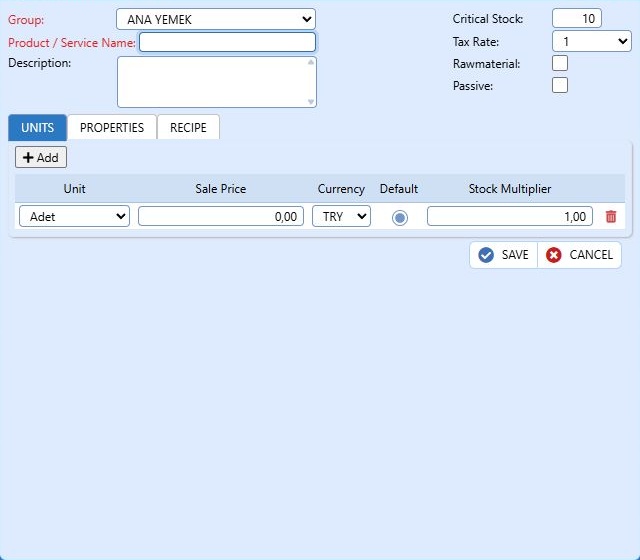
Check the Group, Product / Service Name, description, Critical Stock, VAT Rate, and Passive fields.
In the UNITS tab, edit the unit, sales price, currency, default selection, and Stock Multiplier. Check the FEATURES and RECIPE fields as needed and save.
Product and service card: group, VAT, unit, price, and stock multiplier · Click to enlarge the image.
Product / Service
How to deactivate an added product or service?
Management → Definitions → Open the relevant card under Products & Services.
Edit the inactive field and save. Check the product/service name and associated unit/price information.
Deactivating is different from deleting past addition items or stock movements.
Product and service card: group, VAT, unit, price, and stock multiplier · Click to enlarge the image.
Product / Service
How are products/services grouped?
Under Management → Definitions, Product & Service Group definitions can be found. The Group list in the product card uses these definitions.
Open the relevant product/service card, select the correct group, and save. Do not confuse the product’s group with department selection.
Product and service card: group, VAT, unit, price, and stock multiplier · Click to enlarge the image.
Product / Service
Can I update the prices of products in bulk?
Open the Bulk Product Update button in Management → Definitions → Products & Services list.
Select the Product Group. The table contains fields for Unit, VAT Rate, Critical Stock, Stock Multiplier, Sales Price, and P.Br for each product/service.
Edit the Sales Price and currency for the relevant rows; make sure you have not unintentionally changed other product/unit fields and use the Save button. Bulk update of room or channel prices is separate from this form.
Bulk product update: group selection and updatable columns · Click to enlarge the image.
Product / Service
How can I get a sales report of products/services?
On the Accounting → Expenses & Checks screen, there are date range, Department, and Check No filters. Report View and Check View are separate options.
Select the relevant period and scope, and use the List button. Examine the Product Group, Product Name, Quantity, Unit Price, Amount, Complimentary, and Return columns in the subtable.
Evaluate non-accommodation sales and accommodation-related checks separately in the filters.
Check card: department, product items, complimentary and collection · Click to enlarge the image.
Room Cleaning Rules
How can we change the room to dirty or clean status?
Open the Room Cleaning option in the Front Office left menu.
From the status list of the relevant room, select Clean or Dirty. Check the correct room with the Clean/Dirty/Broken/Occupied/Reserved filters.
Only adjust the cleaning status and complete it by clicking Save. Clear All is more comprehensive than a single room operation.
Room cleaning: status selection and fault note · Click to enlarge the image.
Room Cleaning Rules
How to add a fault note to a faulty room?
In Front Office → Room Cleaning screen, find the relevant room.
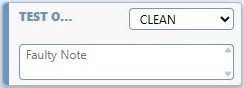
In the Status field, select Faulty, and in the room row, there is the Fault Note field. Enter the note after checking the actual fault and the room number.
Save the change and check the status of the correct room. Making a room inactive is a separate process.
Room cleaning: status selection and fault note · Click to enlarge the image.
Room Cleaning Rules
How can I define periodic cleaning definitions?
In Management → Definitions → Room Cleaning Rules screen, use the Add button.
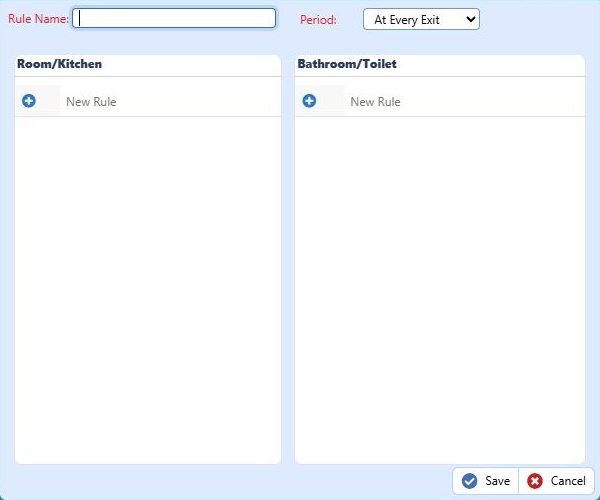
Specify the Rule Name and Period. Current periods are At Each Checkout, When Room is Full, and When Room is Empty options.
Organize tasks with the New Rule fields in the Room/Kitchen and Bathroom/Toilet sections. Save by checking the rule coverage.
Cleaning rule: period, room/kitchen and bathroom/toilet tasks · Click to enlarge the image.
Tools
Where can I update exchange rate information?
Check the transaction date and currency. In Program Features, there is a parameter to Update Exchange Rates at End of Day.
Front office tools: rate transfer, exchange rates, and reminders · Click to enlarge the image.
Tools
Where can I add a reminder note to the program?
Use the Reminders option in the Front Office → Tools menu. The Reception screen also has a Calendar and Reminders section.
Organize the note according to the relevant date and subject; check the Date and Description fields in the list. Reminder notes and booking/guest notes are different fields.
Front office tools: rate transfer, exchange rates, and reminders · Click to enlarge the image.
Tools
Where can I see guests' address information?
Review the relevant guest record through Front Office → Reports → Guest Personal Information. The Phone Directory is also found in the Tools menu.
Make sure you have selected the correct person; compare the contact information with the person's record. For editing address information, proceed together with your property manager or the Adonis support team.
Front office reports: accommodation, occupancy, guest, and notification reports · Click to enlarge the image.Guest card: identity and contact fields, blacklist · Click to enlarge the image.
Expenses / Checks
How is an expense/check added to a stay?
Use the Add button on the EXPENSES / CHECKS tab of the accommodation card. The expense list and check items are displayed in separate tables.
If the new accommodation has not been saved yet, the application asks for confirmation to automatically save the accommodation before adding a check. Complete the accommodation information first.
Stay card: expenses, checks, and check items · Click to enlarge the image.Check card: department, product items, complimentary and collection · Click to enlarge the image.
Expenses / Checks
How is an expense/check outside of lodging processed in Adonis?
Open the Expenses & Checks shortcut in the accounting module and use the Add button.
Check the date, Department, Table No, Check No, and note in the check form. Edit the products and the quantity/amount in the Check Items.
Do not use the 'Transfer This Receipt to Room Account' field for non-accommodation registration. Complete by checking collections and totals and clicking Save.
Check card: department, product items, complimentary and collection · Click to enlarge the image.
Expenses / Checks
How is an incorrectly added check deleted from the accommodation card?
You can initiate the process by selecting the relevant receipt in the EXPENSES / RECEIPTS list of the accommodation card and clicking the Delete button.
Check the correct receipt, products, and associated collection; do not confuse the receipt record with the payment record.
Stay card: expenses, checks, and check items · Click to enlarge the image.
Expenses / Checks
How do you mark complimentary items on restaurant checks?
In the receipt editing form, select the relevant product in the Receipt Items list. The Complimentary button is located on the sub taskbar.
Check the item and amount to be complimentary; distinguish between making all items complimentary and making a single item complimentary.
Complete the record by reviewing the total of the bill and the remaining amount. Complimentary items and returns are shown as separate columns/transactions in the list.
Check card: department, product items, complimentary and collection · Click to enlarge the image.
Invoice Issuing / E-Invoice Procedures
How is invoice design done in Adonis?
In the invoice print layout, paper size, company information, line items, tax, and total fields are evaluated together.
Prepare the template layout suitable for the type of invoice you are using with the Adonis support team. Before use, check the readability of the sample printout and the placement of the fields.
Invoice Issuing / E-Invoice Procedures
I am getting a VAT error on the invoice screen, what can I do?
Go to Management → Definitions → Facility Information → Program Features and check the VAT rates used in the facility.
Compare the VAT selection of the items on the invoice form and the option for taxes included in the entered prices. Do not assume that the rates shown in the program are the correct tax rates for each service.
Program features: reservation, boarding, time, VAT, and report settings · Click to enlarge the image.Invoice form: items, VAT, discount, and total fields · Click to enlarge the image.
Invoice Issuing / E-Invoice Procedures
How is E-Invoice usage activated?
Go to Administration → Definitions → Facility Information → E-Invoice Features tab. The Use E-Invoice field displays the account form.
In the current form, there are E-Invoice User, E-Invoice Password, Mailbox Label, and Sender Unit Label; series list and Company Information. Use your authorized integrator account information.
Program features: reservation, boarding, time, VAT, and report settings · Click to enlarge the image.
Invoice Issuing / E-Invoice Procedures
How to purchase e-invoice credits?
The invoice screen contains Quota Amount and Buy Now fields.
Check the package amount, price, and the facility account where the credits will be loaded through Buy Now. After the purchase is completed, review the credit amount again. You can get assistance from the Adonis support team regarding the purchase.
Invoice Issuing / E-Invoice Procedures
How to issue an invoice to a company/agency?
In Accounting → Current Accounts, check the Account Type, Invoice Type, title, tax, and address information of the company/agency record. The Add button in the Invoices tab of the current account opens the invoice form.
Verify the Buyer from the Name/Search field. For Add Accommodation option and manual items, check the description, quantity, VAT, and price fields.
Current account card: account type, invoice information, and transactions · Click to enlarge the image.Invoice form: items, VAT, discount, and total fields · Click to enlarge the image.
Invoice Issuing / E-Invoice Procedures
How can I cancel an invoice I issued?
Determine whether the invoice has been sent as a draft or an official document, the type of document, and its status in the integrator.
Evaluate the Cancel field in the application separately from the official cancellation/objection process of the sent electronic document. Execute the process through your accounting responsible, in accordance with the document type, GİB, and integrator procedures.
Invoice form: items, VAT, discount, and total fields · Click to enlarge the image.